

Search & Sync Integration Workflow
A common integration workflow for searching and syncing job & model details
Overview
The Search and Sync workfow, or Import workflow, outlines a way to get data for Jobs that exist in into other platforms, like CRMs. This guide aims to outline this workflow, and a suggested modal to accompany this flow.
When to use Search & Sync
Search and Sync is reccomended in every integration. It is the most fundamental way to pull data from Hover into your system. We also reccomend the webhook-driven approach, which automatically syncs completed jobs for all authenticated users, but it may be overkill for some patterns. In every case we recommend at least search and sync, plus the webhook flow when bandwidth allows. Search & sync is a beneficial solution because it supports:
- Selective job syncing
- If not every Hover job is relevant in your system, users may find the specific property they need and only sync that Job's details
- Historic Job Syncing
- Users may have jobs that existed before the webhook powered integration was turned on; this allows them to pull data for those jobs.
- Syncing of Jobs that start in Hover
- Some webhook based patterns rely on ID matching that precludes jobs which start in Hover from auto-syncing to the CRM via webhook; to account for scenarios where the user must start the job in Hover we strongly reccomend also supporting the Search and Sync pattern, which does allow users to start jobs in Hover, and then pull the data to the CRM via manual trigger.
Example
Below is an example UI flow for a the search & sync portion of an integration.
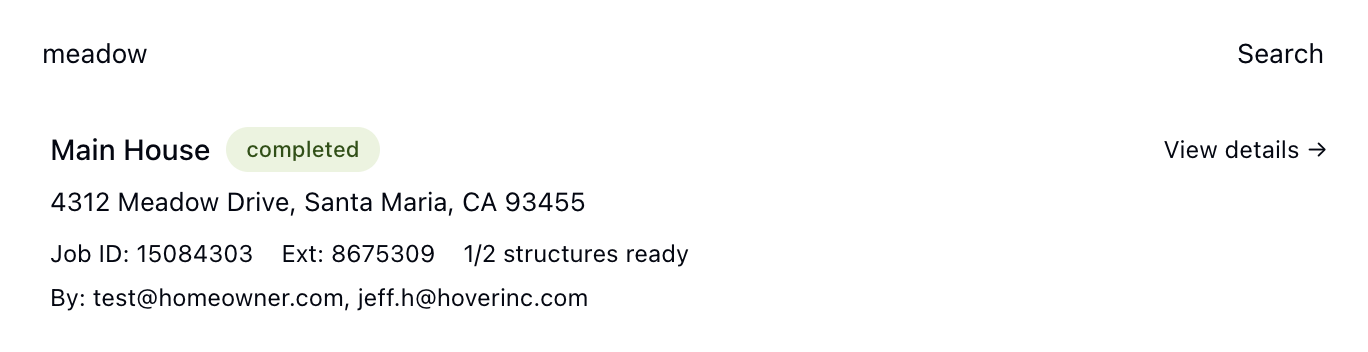
Search for a Job
Query jobs using the List Jobs Endpoint which allows search based on the job name, address, or user. Additional filters can be added to the query as needed.
Fetch full job details
Once a job is selected from the List Jobs response, fetch the full record. The models[] array will contain all structures associated with the job. The entire job's details can be found using the Get Job Details endpoint.
It's important to note that a model's state is independent of the job's reconstruction_state. The reconstruction_state indicates that Hover has attempted to reconstruct all models associated with a job. If the reconstruction_state is failed, that means all models have failed to reconstruct. If the state is complete, it means that at least one model has been reconstructed successfully, however there may be failed models on the job.
Always check to ensure the model's state iscompletebefore retrieving artifacts.
Select Structures & Sync
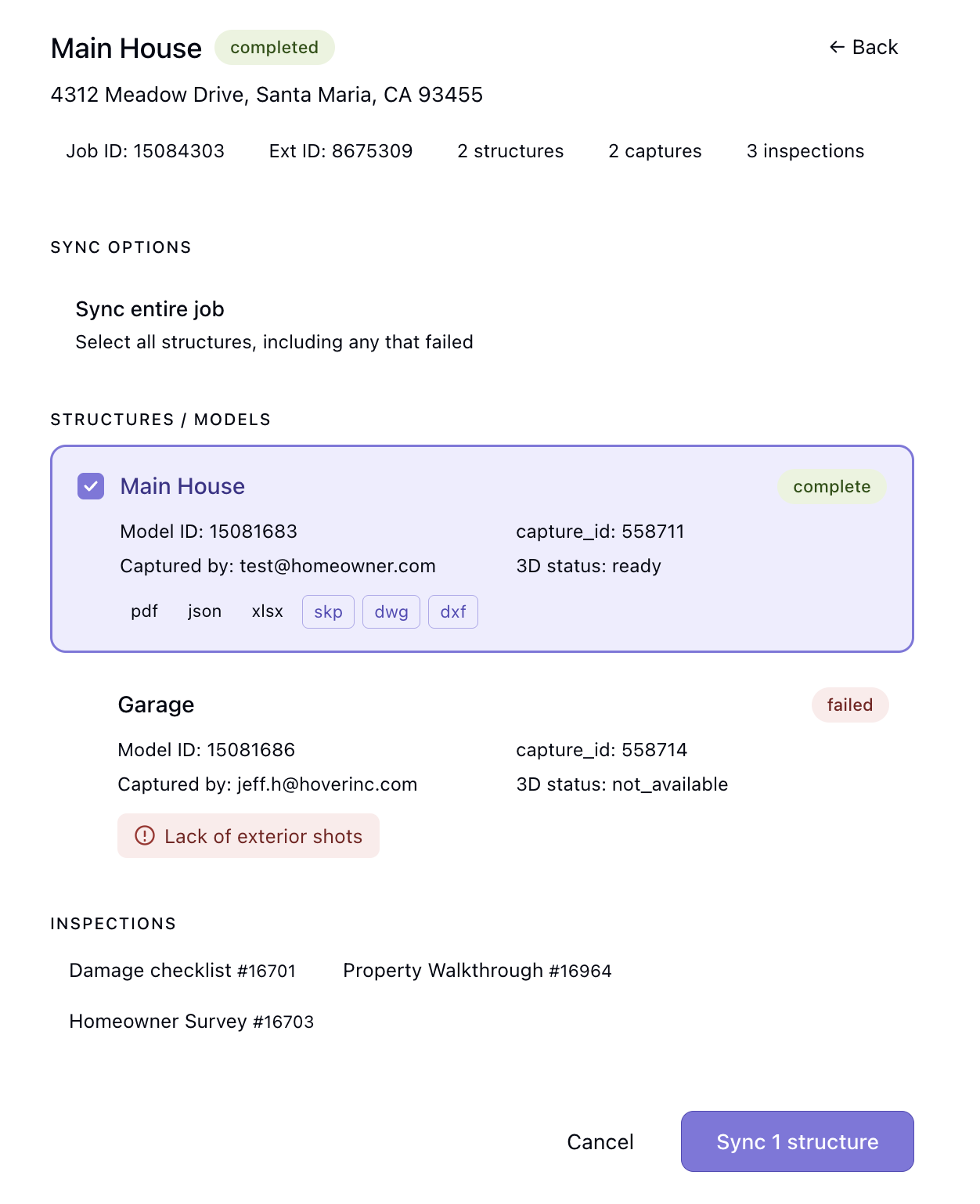
Allow the user to see the returned job, and select which model to pull data for.
The Modal
Hover supports capturing multiple structures (models) within a single property (Job), as well as multiple levels of a single structure (for interiors). A single job can contain multiple models, each representing an individual structure (e.g. house, detached garage, shed) or level (e.g. first floor, second floor). The modal should support selecting 1 model, or many models on the Job.
Updated 6 months ago