

Estimates Integration Workflows
How to use Hover's estimate API endpoints within your integration.
Overview
This guide covers how to retrieve Estimate data and line item information from the Hover API. There are two general workflows depending on your integration pattern:
- Webhook-based (recommended): Listen for the
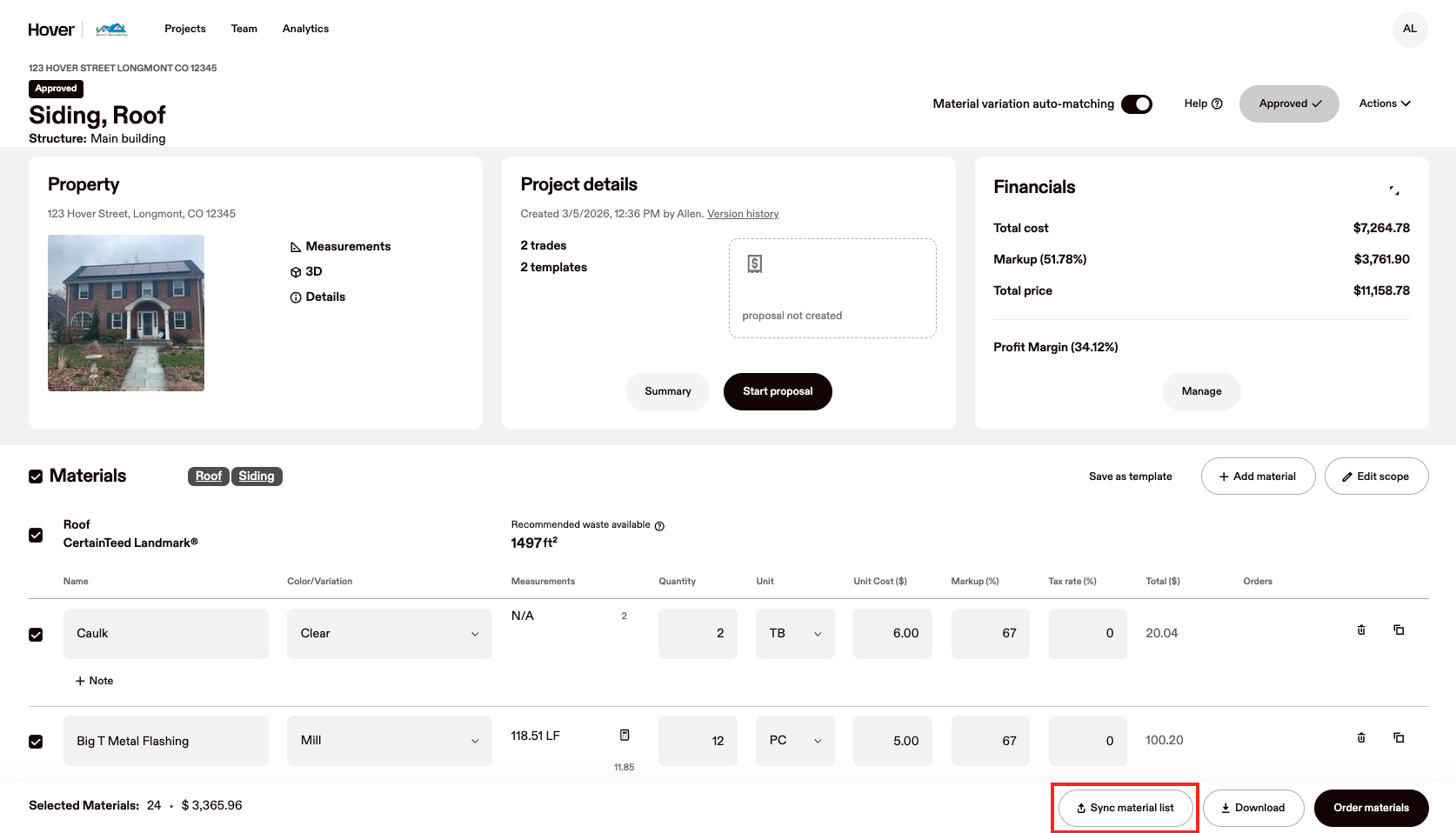
project-management-production-list-manual-syncevent, which fires when a user clicks "Sync material list" in the Hover UI. - List Estimates -> Fetch Estimate Details: Uses the List Estimates endpoint to retrieve all Estimates for a Job, then fetch the detail via the production list ID.
Workflow 1: Webhook-based (recommended)
Use this workflow when you want to react to a user-initiated sync in realtime. To learn more on how to register a webhook, see our documentation.
This workflow utilizes the project-management-production-list-manual-sync webhook event. More information can be found here. This event fires when a user explicitly clicks the "Sync material list button inside of the Hover UI when editing an Estimate. It is the recommended trigger for pulling Estimate data to external systems because it represents a deliberate, user-confirmed intent to sync.
Step 1: User Manual Sync
When a user clicks Sync material list, a project-management-production-list-manual-sync event will send with the following body:
{
  "project_management_production_list_id": 84213,
  "job_id": 9903472,
  "event": "project-management-production-list-manual-sync",
  "org_id": 130582,
  "webhook_id": 4471
}
Step 2: Pull back Estimate Details
Using the project_management_production_list_id from the webhook body, your integration can then use the Show Estimate Details endpoint to display the line items of the Estimate (sample response included on that page).
Workflow 2: List Estimates -> Fetch
This workflow allows integrations to search a job for its corresponding Estimates (using the List Estimates endpoint, select which to sync, then save the Estimate details back to an external system.
Step 1: List Estimates for a Job ID
For a given job, call the List Estimates endpoint, passing in the desired Job ID. Within the productionLists object, will contain all corresponding Estimates for that Job. Example output:
{
  "jobId": 18928172,
  "jobExternalIdentifier": "",
  "productionLists": [
    {
      "productionListId": 715622,
      "name": "Siding",
      "createdAt": "2026-04-01T17:50:33Z"
    },
    {
      "productionListId": 715623,
      "name": "Siding & Roof",
      "createdAt": "2026-04-01T17:55:33Z"
    }
  ]
}
Step 2: Fetch details for a specific Estimate
The productionListId parameter of each productionLists object will be used as the project_management_production_list_id input to the Show Estimate Details endpoint. You have the choice to either sync over all Estimates which are turned from step 1, or with user input, sync the details for a specific Estimate.
Updated 4 months ago