

Agreements Integration Workflows
How to use Hover's agrement API endpoints within your integration.
Overview
Agreements (FKA proposals) are an easy way for businesses to provide sign-able documents to homeowners from a previously created design or estimate. This guide covers how to retrieve agreement data from the Hover API. In the two workflows detailed below, users can choose to listen to webhooks to pull back agreement data upon agreement creation or upon an agreement signed.
Workflow 1: Pre-Signature Agreement Retrieval
Use this workflow when you want to pull back agreement data upon the agreement creation in Hover. To learn more on how to register a webhook, see our documentation.
Step 1: Listen for agreement created webhook event
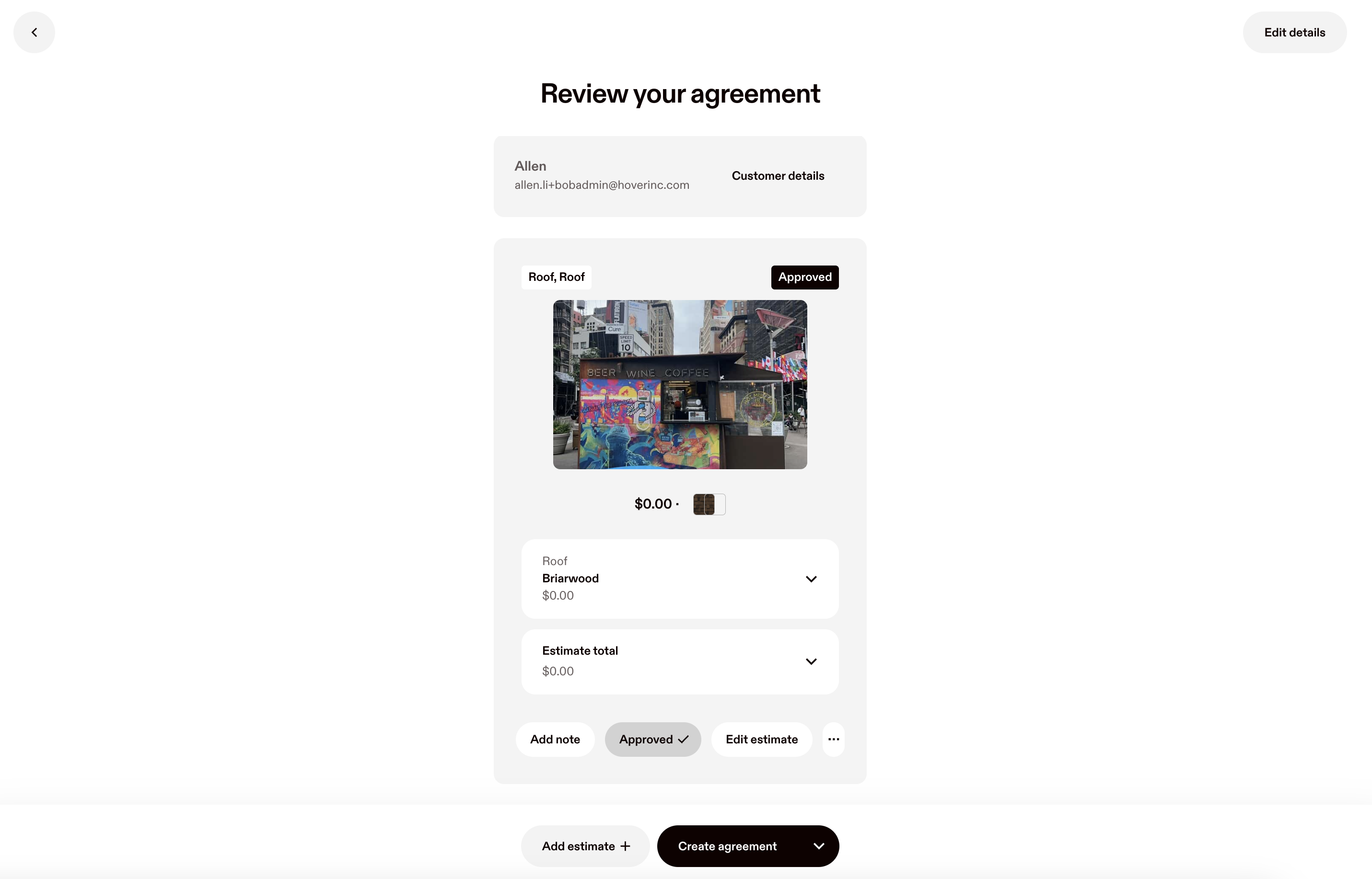
This workflow utilizes the project-management-proposal-document-state-changed webhook event. More information can be found here. After a user selects "Create agreement" and Hover successfully generates the agreement, this event will fire with state=complete.
Step 2: Retrieve agreement details
Using the project_management_proposal_document_id from the webhook body (example below), use the get agreement details endpoint to retrieve data such as the PDF, customer signature status, and any related estimates (production lists).
{
  "project_management_proposal_document_id": 60741,
  "estimation_estimate_group_id": 21988,
  "sales_opportunity_id": 55217,
  "job_id": 9903472,
  "org_id": 130582,
  "state": "complete",
  "event": "project-management-proposal-document-state-changed",
  "webhook_id": 4471
}
Workflow 2: Signed Agreement Retrieval
Step 1: Listen for signature state changed webhook event
After sending an agreement out for a customer signature, if your integration only wants to pull back signed agreements, then you can utilize the project-management-signature-request-state-changed webhook event. More webhook information can be found here. After the customer signs the agreement, this event will fire with state=complete in the body along with other metadata. See the example body below:
{
  "project_management_signature_request_id": 33150,
  "project_management_proposal_document_id": 60741,
  "state": "complete",
  "signed_at": 1751657700,
  "event": "project-management-signature-request-state-changed",
  "org_id": 130582,
 "job_id": 22611631,
  "webhook_id": 4471
}
Step 2: Retrieve signed agreement details
Using the project_management_proposal_document_id , use the Get Agreement Details endpoint to retrieve the PDF and other related information to the job. For a successfully signed agreement, the signatureRequest field will be populated with "state": "complete" . An example of the body can be found below:
{
  "id": "8f2c1a3e-4b5d-4c6f-9a0b-1c2d3e4f5a6b",
  "state": "complete",
  "pdf": {
    "redirectUrl": "https://api.hover.to/files/redirect/document.pdf"
  },
  "createdAt": "2026-06-18T14:03:22Z",
  "updatedAt": "2026-06-20T09:47:10Z",
  "orgId": 48299,
  "user": {
    "id": 200294,
    "firstName": "Jordan",
    "lastName": "Alvarez",
    "email": "[email protected]"
  },
  "job": {
    "id": 229900,
    "externalIdentifier": "CRM-88200",
    "locationLine1": "A nice avenue",
    "locationLine2": "Unit 4",
    "locationCity": "New York",
    "locationPostalCode": "99999",
    "locationRegion": "NY"
  },
  "signatureRequest": {
    "state": "complete",
    "signedAt": "2026-06-20T09:45:58Z"
  },
  "productionLists": [
    { "id": 404222 },
    { "id": 404244 }
  ]
}
Updated 4 months ago