

Connecting to ChatGPT
This guide will walk you through how to connect Hover MCP to Chat GPT
1. Navigate to ChatGPT Settings
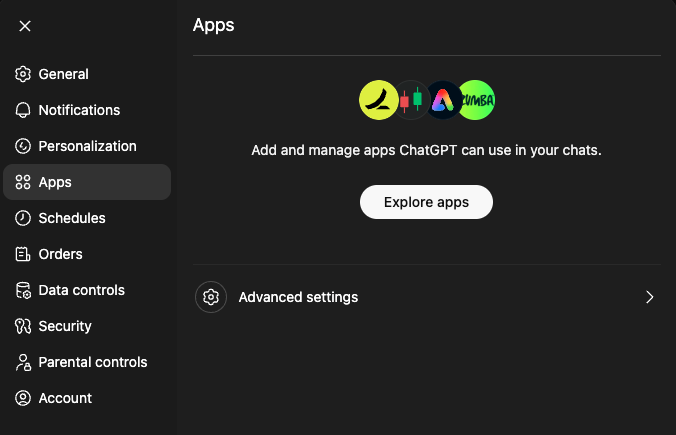
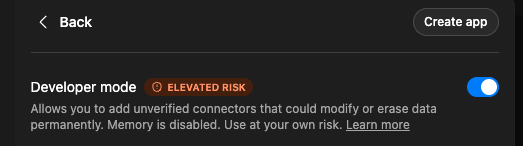
Click on "Apps", then click on "Advanced settings" to enable Developer mode.
2. Create an App
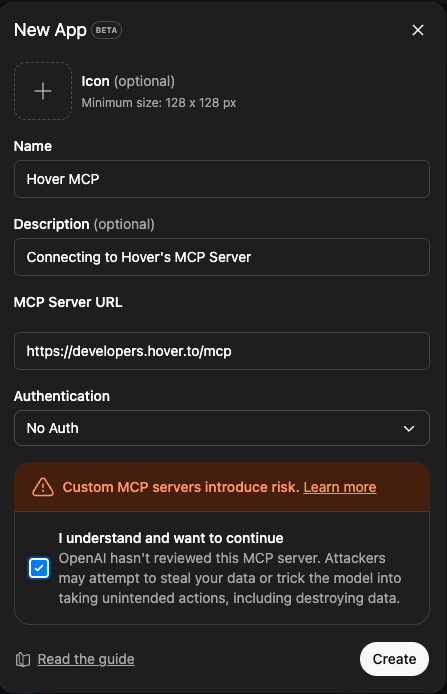
Click on "Create app" in the top right-hand corner. Then populate with the correct information. If you leave the icon portion blank, it will auto populate with the Hover logo. Select "No Auth" for the Authentication section.
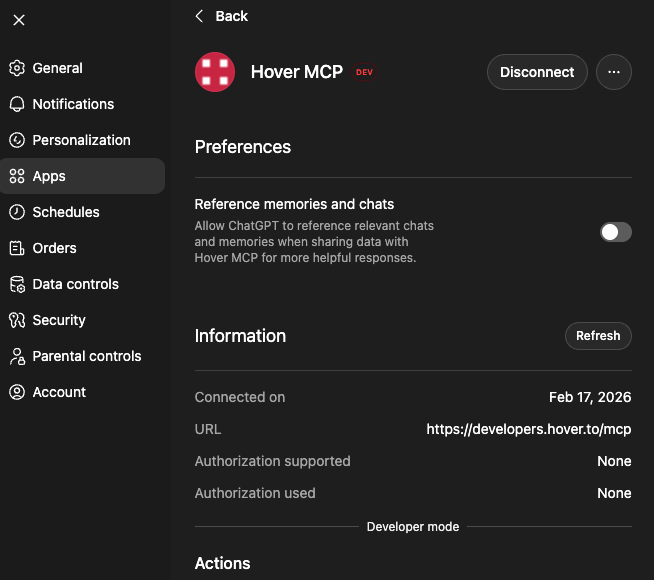
Once complete you should see a summary of the connection as well as all supported actions in Developer mode:
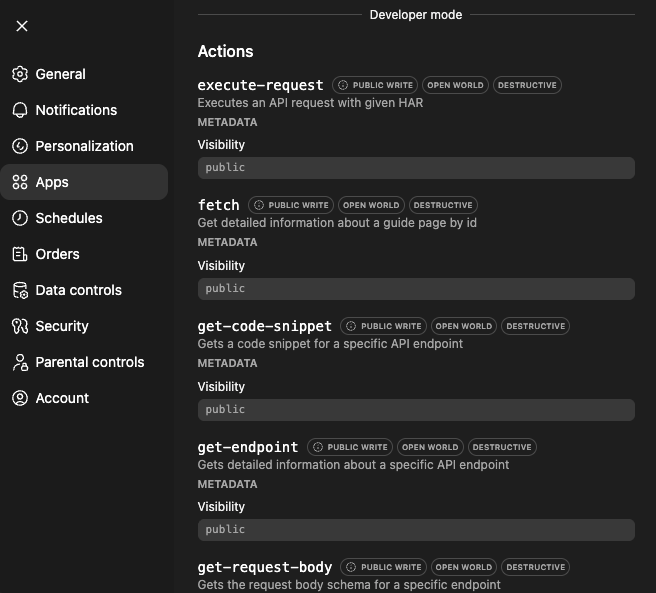
3. Begin Asking Questions
Before you begin prompting using the Hover MCP, ensure that the Hover MCP app you just created is being used in the text input box. You can do this by opening a new chat, hitting the "+" icon, click on "More" then click the Hover MCP app.
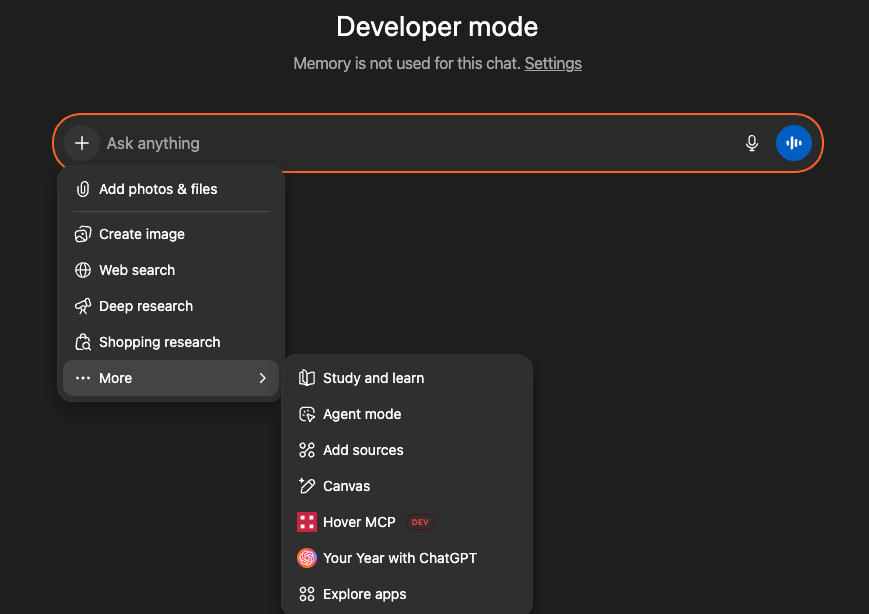
Once successfully added, your text input box should look like the image below, indicating you are in Developer mode and are using the Hover MCP. Now you can take advantage of the 12 tools we have available to traverse and understand our Guides and API Reference!

Updated 7 months ago