---
updatedAt: 2026-10-23T17:52:53.000Z
agentTools:
projectIndex: https://developers.hover.to/llms.txt
---
# Creating and Managing Integrations for Development
Information for developers on how to begin building and managing Hover Integrations
## Overview
Integrations allow you to connect to your Hover organization programatically to leverage your own code and functionality.
## Custom vs. Public integrations
There are two kinds of Hover integrations:
**Custom (My Team Only):** built for your own Hover organization, a single customer. Anyone with API access, including Starter plans, can build one using these docs. Hover Solutions Engineering provides supports for custom integrators on Pro plan and above.
**Marketplace (Public):** reusable integrations that, generally built by software companies for mutual Hover customers. They're listed in the Hover Marketplace. Being listed in the Marketplace means allowing customers to connect via OAuth, having Hover Help Center documentations, and working with Hover to complete testing and review to be approved to allow mutual customers to connect. Public integrations require an approved [partner application,](https://developers.hover.to/update/docs/prerequisites-for-creating-a-marketplace-integration) and to go though the marketplace process. More info on the marketplace pricess can be found [here](https://developers.hover.to/docs/posting-your-integration-to-the-hover-marketplace).
## Creating and managing an integration in your Hover Org
You can create and manage your integrations directly within the Hover web application, accessible through your organization's settings.
*Note: This is section only visible to **Team Admins**.*
## Creating a new Integration
Here's how to set up a new integration:
1. In the top right-hand corner of the page, click your **email address**, then select **Settings**.
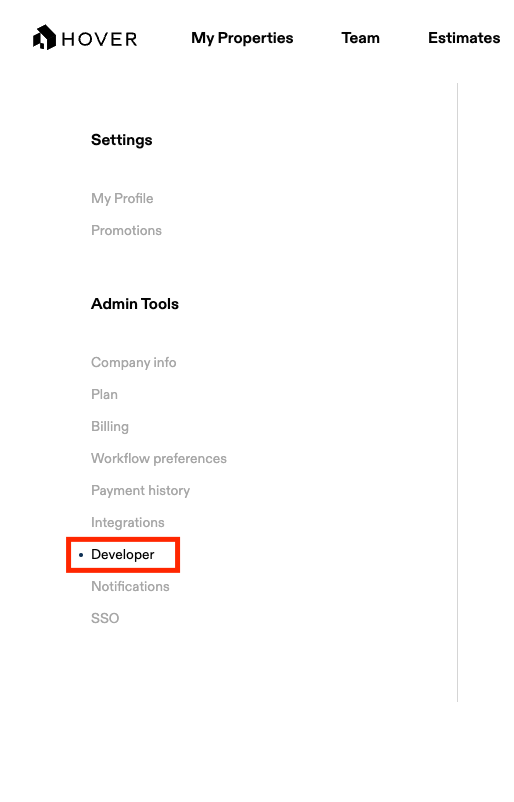
2. On the left-hand menu, click **Developer**.
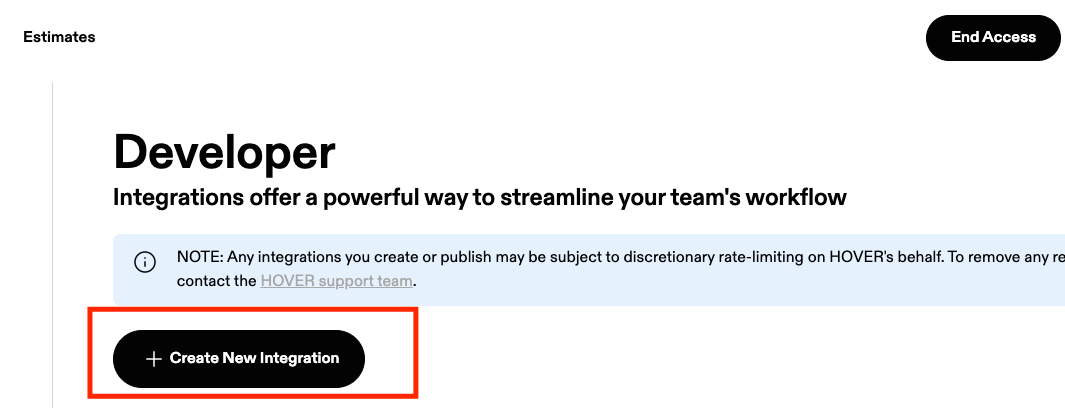
3. Click the **Create New Integration** button.
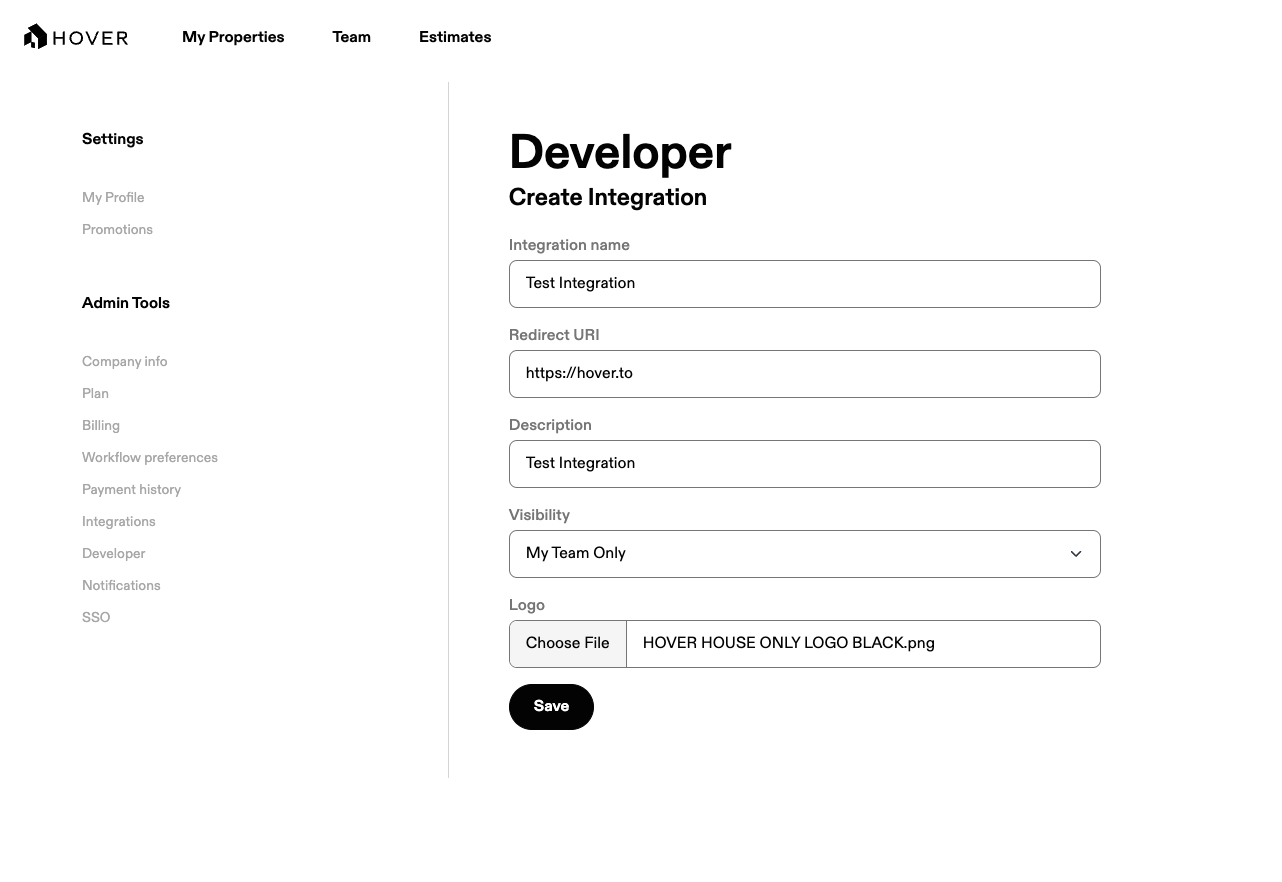
4. Fill out the four required fields to create your integration:
* **Integration Name** -- The name of your integration
* **Redirect URI** -- This is the location where the authorization server sends the user once the app has been successfully authorized and granted an authorization code. The redirect uri **must be a valid, secured (https) site**
* **Description** -- A brief description of your integration
* **Logo** -- Your company's logo
5. Once those fields have been completed, click **Save Integration**
## Retrieving your API Credentials
After creating your integration, you'll need to retrieve your API credentials:
1. From the **Developer** tab in your organization's settings, click **Edit** next to the integration you wish to manage.
2. Your **OAuth Client ID** will be visible on the right side of the screen.
3. To view your Client Secret, click the **Reset** button and confirm your selection.
4. Save these credentials in a secure location. We recommend periodically rotating (resetting) your Client Secret value for enhanced security.